
Build and Edit Your Store From Your Phone
No laptop? No problem. Safari Shop Builder has a phone-native editor built for thumbs — tap a section to select it, edit content in a bottom sheet, reorder with a tap, preview, and publish, all from your phone.
Most South African sellers run their business from a phone — and Safari Shop Builder is built the same way. You don’t need a laptop to create or change your store. The mobile editor is a proper, phone-native experience designed for thumbs: tap, edit, reorder, preview, publish. Here’s how it works.
It opens straight into your live store
From your dashboard, tap Edit Design on the store you want to change. The editor opens full-screen showing your actual storefront at phone width — exactly what your customers see. You scroll it like a normal page, and your save status sits right at the top (Saving, Saved, or Unsaved) so you always know where you stand.
Tap a section to select it
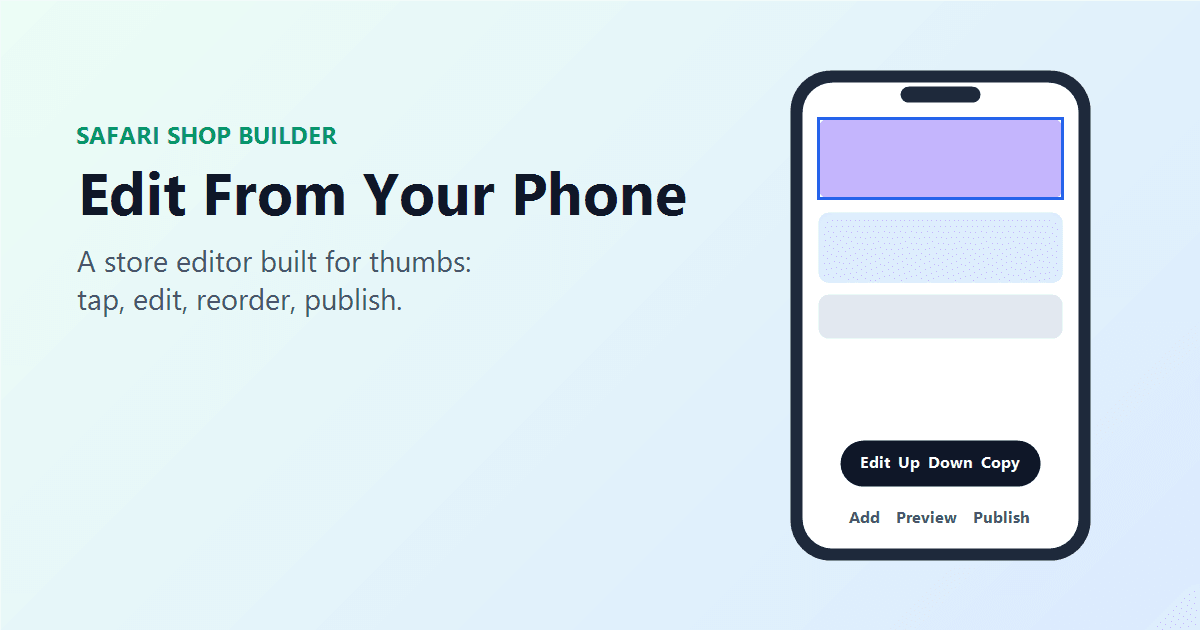
Everything on your store is a section — the header, the hero banner, your product grid, your about blurb, and so on. Tap any section and it lifts with a highlight and a little buzz of feedback, and a floating toolbar appears with everything you can do to it:
- Edit — change its content.
- Up / Down — move it earlier or later on the page.
- Copy — duplicate it.
- Delete — remove it (with a confirm, so no accidents).
No tiny drag targets, no fiddly handles — just tap the section you mean and act on it.
Editing content in the bottom sheet
Tap Edit and a sheet slides up from the bottom with that section’s controls, while the section itself stays pinned above it and updates live as you type. Change your headline, your button text and link, your colours, your images — and watch it happen in real time. Need more? Pull the sheet up (or tap “More options”) to reveal the full set of controls. Tap done and your changes are already applied and saved.
Adding sections
Tap Add on the bottom bar and pick from the section library — hero, products, about, testimonials, FAQ, gallery, image carousel, promo bar, trust strip, buttons, text, footer, and a floating WhatsApp button — each with a short description so you know what it does. Tap one and it drops straight into your store.
Undo, redo, and autosave have your back
Experiment freely. Undo and redo live in the top bar, and your work saves automatically as you go. If your signal drops mid-edit, the editor keeps your changes on your device and syncs them when you’re back online — so a patchy connection never costs you your work.
Preview, then publish — all from your thumb
Tap Preview to see your store framed as a real phone, tablet, and desktop before anyone else does. Happy with it? Tap Publish and it goes live. While it’s a draft, only you can see it.
Tips for editing on the go
- Work in short bursts. Fix a headline here, swap an image there — the autosave means you can edit in spare moments between customers.
- Lead with the hero. On a phone it fills the first screen, so a clear headline and a strong image matter most.
- Use Preview before Publish. It’s the quickest way to catch anything that looks off.
- A few sections well done beats a long page — easier for you to manage and for customers to scan on their phones.
Some of the deepest styling options are still roomier on a big screen, but the essentials — content, images, layout, order, preview, and publish — are all right there in your hand. Your whole store, editable from the device you already carry everywhere. Open your dashboard and give it a try.